You've been planning this sale for three weeks.
You set up the discount codes, created the ads, wrote the emails, briefed your fulfillment team. Launch day arrives. You send the email to your list. The ads go live.
Traffic spikes immediately.
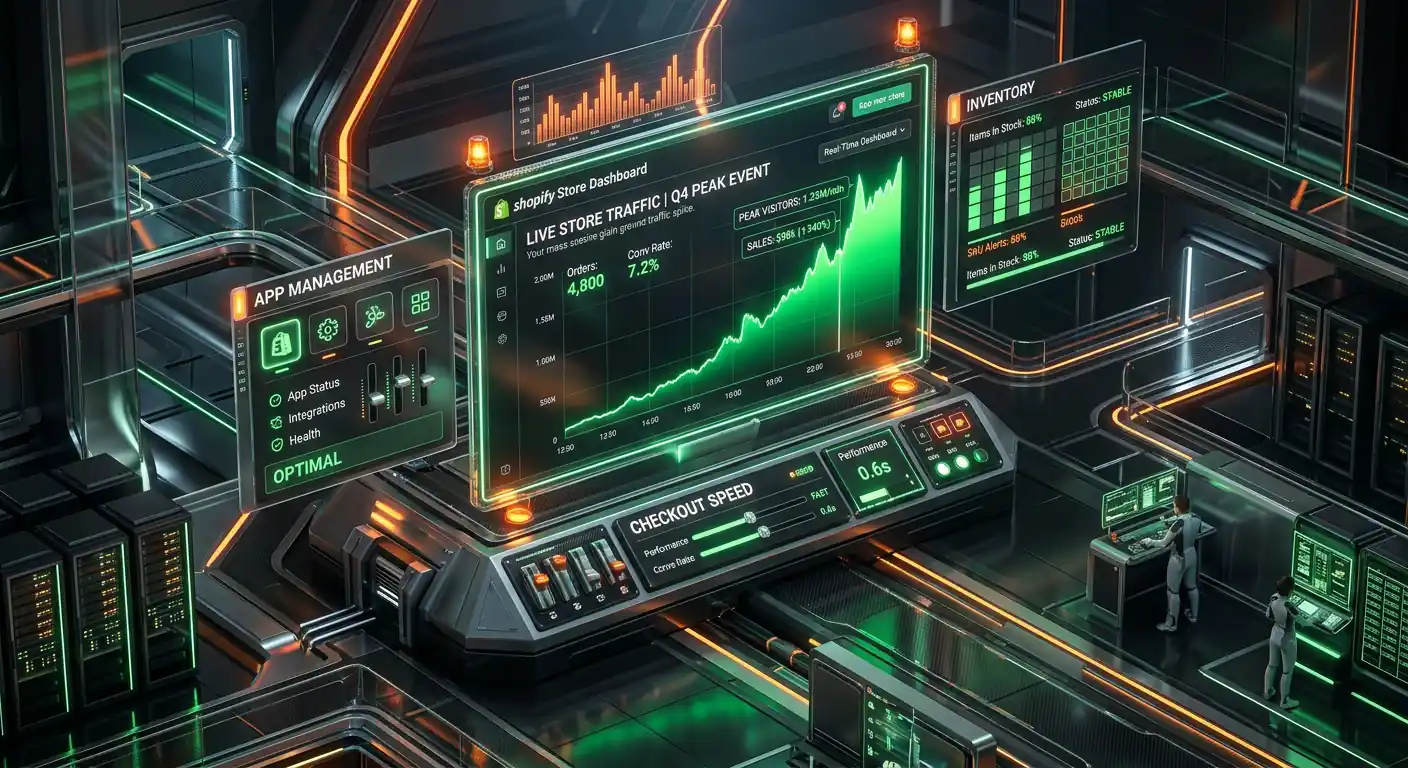
Your store slows down. Pages take 10 seconds to load. The cart stops working. Customers start emailing you saying they can't check out. By the time you figure out what's going wrong, you've lost an hour of peak sale time and a significant portion of the revenue you planned for.
This happens to Shopify store owners during Black Friday, flash sales, product launches, and any other moment where traffic spikes suddenly above normal levels.
Here's how to make sure it never happens to you again.
First — Understand What Actually Happens During a Traffic Spike
Shopify's infrastructure is genuinely excellent. Unlike self-hosted platforms where you're responsible for your own server capacity, Shopify's CDN and hosting scales automatically. The platform itself almost never crashes.
But here's what does happen:
Third-party apps struggle. Your review app, loyalty app, live chat, and marketing tools all make requests to their own servers when your store loads. When traffic spikes, those servers get hit with more requests than they handle at normal traffic levels. Some of them slow down dramatically. Some of them go down entirely.
Your store doesn't crash — your apps crash. And since those app scripts are loading on your store, your store feels slow and broken to customers even though Shopify's infrastructure is fine.
Inventory updates slow down. With hundreds of simultaneous customers, inventory levels updating in real-time can create lag. Customers add products to their cart only to find them sold out at checkout — creating a frustrating experience.
Your own infrastructure outside Shopify can fail. Your email platform, your fulfillment system, your customer service tools — all of these can struggle under spike load.
Step 1 — Reduce App Load Before Your Sale
The single most effective way to prepare for a traffic spike is to reduce the number of third-party apps loading on your store.
In the week before your sale, do a temporary app audit:
Identify apps that are not essential during the sale. Loyalty programs, review collection popups, A/B testing tools, heat mapping tools, marketing automation scripts — these are useful normally but add load during your highest-traffic moment.
Temporarily disable non-essential apps. Most apps can be disabled in your Shopify admin without uninstalling them. Check each app's settings for an on/off toggle, or temporarily remove their script from your theme.
Keep only what's essential:
- Payment processing (essential)
- Cart and checkout functionality (essential)
- Inventory management (essential)
- Basic analytics (essential)
- Customer support chat (judgment call — useful but adds load)
Everything else is a nice-to-have that can be re-enabled after the sale.
Step 2 — Optimize Your Store Performance Before the Sale
The performance fixes covered in our Shopify speed guide matter even more during flash sales because your store is under higher load.
The pre-sale performance checklist:
Run PageSpeed Insights on your homepage and your sale landing page. Your mobile score should be above 60 before running a high-traffic sale. Below 50 means a significant percentage of mobile visitors will bounce before the page loads.
Optimize every image on your sale pages. Product photos, banner images, and promotional graphics should all be under 200KB and in WebP format.
Test your sale landing page load time on a mobile connection. If it takes more than 3 seconds to reach interactive, it will feel slow during the sale.
Enable browser caching. Most Shopify themes do this automatically, but verify it's working in your PageSpeed results.
Step 3 — Stress Test Your Checkout Before Launch
The worst possible moment to discover a checkout problem is during a live flash sale.
Before every major traffic event, run through your complete checkout process manually:
- Add a product to your cart
- Apply your sale discount code (if applicable)
- Enter test shipping information
- Complete a test purchase using Shopify's test payment mode
- Verify the order confirmation email sends correctly
- Verify the order appears correctly in your admin
Do this at least 24 hours before the sale launches so you have time to fix any issues.
If you're using a sale-specific discount code or automatic discount, test it specifically. Discount code failures during a flash sale are common and devastating.
Step 4 — Prepare Your Inventory System
Flash sales create inventory management challenges that normal traffic levels don't.
Overselling risk: With many customers simultaneously viewing and adding the same product, inventory counts can lag — showing stock as available when it's actually committed in other carts. This leads to customers completing checkout only to have their orders cancelled because stock is gone.
How to manage this:
In your Shopify admin, confirm that inventory tracking is enabled for all sale products and that the "Continue selling when out of stock" option is disabled. Shopify will prevent checkout for out-of-stock items when this is correctly configured.
Consider building in a buffer. If you have 100 units, set your Shopify inventory to 90. The buffer protects against the lag between when items are added to carts and when inventory counts update.
For high-demand limited products, consider a waitlist or pre-order system instead of standard first-come-first-served, which puts extreme load on your inventory system.
Step 5 — Prepare Your Customer Service
Your customer service volume during a flash sale will spike even more than your traffic. Customers have questions, encounter problems, and need fast responses — and their tolerance for delays is much lower when they're in a time-limited sale mindset.
Before the sale:
Write template responses for the questions you'll definitely receive:
- "My discount code isn't working"
- "I can't check out"
- "Is [product] still in stock"
- "When will my order ship"
- "Can I add/change/cancel my order"
Set up an auto-response for your support email that acknowledges the high volume and sets a response time expectation. "We're experiencing high volume during our sale — we'll respond within [X hours]" is better than silence.
Consider temporarily extending your live chat hours or staffing up customer service for the sale duration.
Step 6 — Have a Technical Backup Plan
Despite best preparation, things can go wrong during high-traffic events. Having a plan for common failure scenarios means you respond quickly instead of panicking.
Scenario 1 — A specific app is causing slowness or errors Know in advance which apps are running on your store and how to disable each one quickly. If an app is causing problems during the sale, you need to be able to disable it in under 5 minutes.
Scenario 2 — Your email platform goes down during launch Have your email list exported and ready in case you need to use a backup platform. Know your backup plan before you need it.
Scenario 3 — A discount code stops working Know how to create and distribute a replacement code quickly. Have a draft email ready to communicate the fix to customers.
Scenario 4 — Social media traffic spikes unexpectedly If your product goes viral or gets featured somewhere large, traffic can spike beyond what you planned for. The same preparation applies — reduced app load and optimized performance protect you from unexpected spikes too.
The Pre-Sale Checklist
2 weeks before: □ Identify and temporarily disable non-essential apps □ Optimize all images on sale pages □ Run PageSpeed on sale landing pages
1 week before: □ Test complete checkout flow including discount codes □ Verify inventory tracking settings □ Prepare customer service templates
48 hours before: □ Final performance test on mobile □ Test checkout again with final sale configuration □ Brief any customer service staff or contractors
Day of sale: □ Monitor Shopify admin for order flow □ Watch for any error reports in customer service □ Keep app admin tabs open for quick disabling if needed □ Check your email platform is sending correctly □ Monitor your store load time during the first hour
A Note on Black Friday and Cyber Monday
BFCM is the highest-stakes version of everything covered in this guide. Traffic volumes are unpredictable, customer expectations are high, and the competition for attention is intense.
The stores that do best during BFCM are the ones that prepared 4 to 6 weeks in advance — not the ones that tried to get ready in the final week.
If you have a BFCM coming up, start your preparation now. The technical work is the same as any flash sale, just with higher stakes and less room for error.
If you want help auditing your store's readiness for a high-traffic event — whether it's a flash sale, a product launch, or BFCM — I'm happy to look at your specific setup and tell you what needs attention.