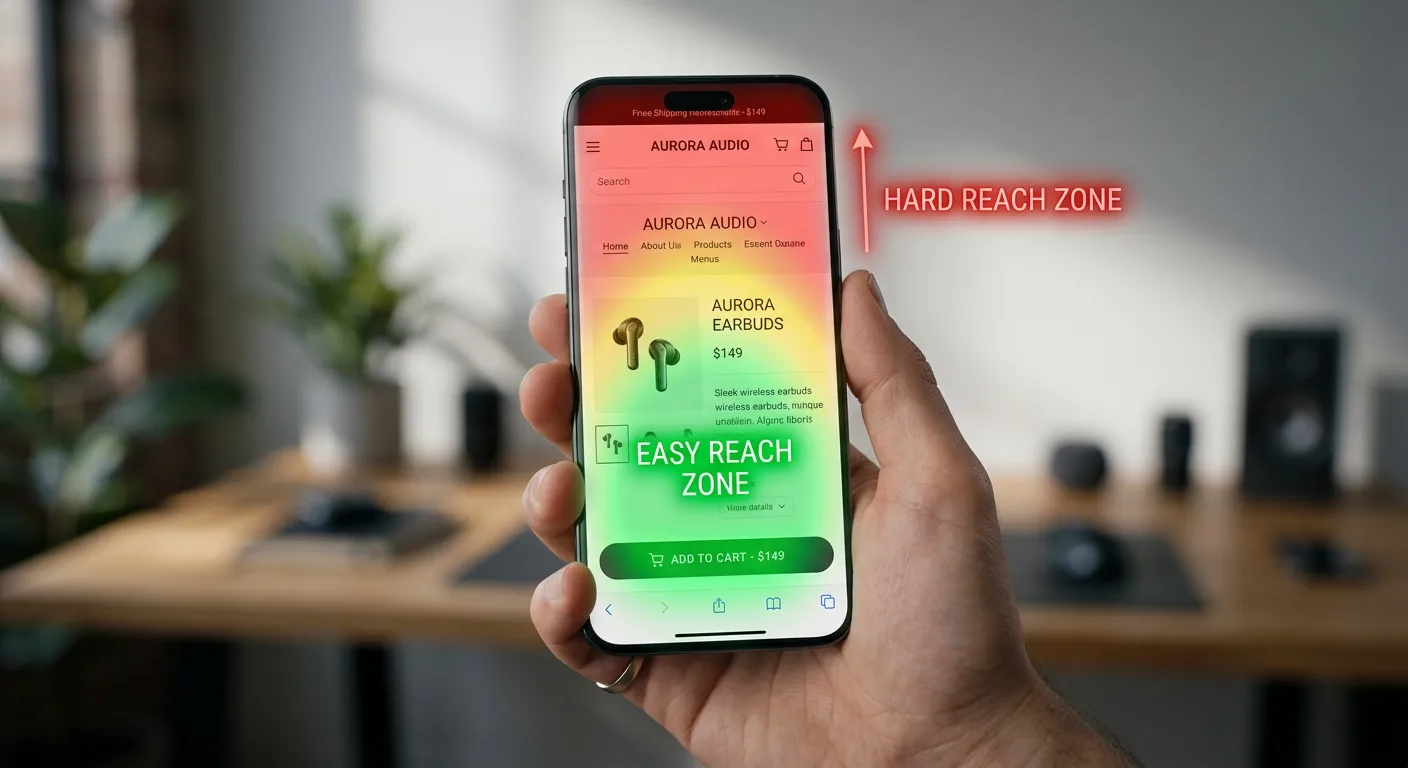
More than 70% of Shopify traffic comes from mobile devices. The majority of your potential customers are browsing on a phone, and the majority of mobile shopping sessions end without a purchase — not because the product isn't right, but because the mobile experience creates friction that kills intent.
Some of this friction is design-level: layouts that don't adapt, text that's too small, images that don't fit. But much of it is code-level: JavaScript that blocks interaction, layout shifts that make the page jump while loading, tap targets too small to hit reliably, and performance issues that are specifically worse on mobile than desktop.
Here's what actually breaks on mobile at the code level — and the specific fixes.
Problem 1 — Layout Shift During Page Load (CLS)
You've experienced this: you tap a link on a mobile page, the page starts loading, you're about to tap what looks like a button — and the page suddenly jumps as an image or ad loads, and you tap the wrong thing.
This is Cumulative Layout Shift (CLS), and it's measured by Google as a Core Web Vitals metric. High CLS frustrates users and signals poor code quality to search engines.
The most common cause on Shopify stores: Images without explicit dimensions.
When a browser renders an image without knowing its dimensions, it initially reserves zero space for it. When the image loads, it pushes everything below it down — causing a layout shift.
The fix:
Every <img> tag needs explicit width and height attributes:
<!-- Causes layout shift — browser doesn't know dimensions until image loads -->
<img src="{{ product.featured_image | image_url: width: 800 }}" alt="{{ product.title }}">

<!-- No layout shift — browser reserves correct space immediately -->
<img
  src="{{ product.featured_image | image_url: width: 800 }}"
  width="{{ product.featured_image.width }}"
  height="{{ product.featured_image.height }}"
  alt="{{ product.title }}"
  style="aspect-ratio: {{ product.featured_image.width }} / {{ product.featured_image.height }};"
>
The aspect-ratio CSS property is the modern way to handle this — it tells the browser the image's proportions, so it can reserve the right amount of space even before the image loads. This is especially important on mobile where images often take longer to load on slower connections.
Other CLS causes on Shopify stores:
Fonts loading and swapping — when your custom font loads after the browser has already rendered fallback text, all the text reflows. Fix with font-display: optional or font-display: swap in your font declarations, and preload critical fonts.
Late-loading embeds — social media embeds, YouTube videos, and chat widgets that inject themselves into the page after load. Give them fixed dimensions or a placeholder of the correct size.
Problem 2 — Tap Targets Too Small for Mobile
Google's mobile-first guidelines require interactive elements (buttons, links, form inputs) to have a minimum tap target size of 48x48 pixels. Most Shopify themes violate this in at least a few places — usually in the header navigation, product variant selectors, and pagination links.
The diagnosis: Run a Lighthouse audit (Chrome DevTools → Lighthouse → Mobile). Look for "Tap targets are not sized appropriately."
The fix: Add minimum touch target sizing in CSS:
/* Ensure all interactive elements have adequate touch targets */
a,
button,
[role="button"],
input,
select {
  min-height: 44px;
  min-width: 44px;
}

/* For small visual elements that need large touch areas */
.swatch-option {
  position: relative;
  /* Visual size: 24x24px */
  width: 24px;
  height: 24px;
}

.swatch-option::before {
  content: "";
  position: absolute;
  /* Touch target: 44x44px, centered */
  top: 50%;
  left: 50%;
  transform: translate(-50%, -50%);
  width: 44px;
  height: 44px;
}
The ::before pseudo-element technique gives a small visual element a large, invisible touch target — the swatch looks like a 24px dot but accepts taps in a 44px area. This is the correct pattern for variant color swatches, which are almost always too small on mobile stores.
Problem 3 — Font Size Below 16px Triggers Mobile Zoom
When an input field has a font size below 16px, iOS Safari automatically zooms in when the field is focused — causing the page to reflow and shift. This is extremely disruptive on a checkout form or search input.
The fix: All form inputs need font-size: 16px or larger:
input,
textarea,
select {
  font-size: 16px; /* Prevents iOS zoom on focus */
}
This is one of those fixes that takes 30 seconds to implement and immediately eliminates a jarring experience for every iOS user who uses a form on your site.
Problem 4 — JavaScript Blocking Interaction on Slow Mobile Networks
On desktop, JavaScript executes quickly. On a mid-range Android phone on a 4G connection, the same JavaScript can block the main thread for 3–5 seconds — during which time the page is visible but unresponsive to taps.
This is measured by the INP (Interaction to Next Paint) metric. High INP means your page looks loaded but doesn't respond to user input, which causes users to tap buttons repeatedly and ultimately leave in frustration.
The diagnosis: In Chrome DevTools → Performance tab, record a mobile simulation. Look for long tasks (red bars in the "Main" thread) — these are JavaScript execution blocks that prevent interaction.
Common causes on Shopify stores:
Synchronous analytics initialization — scripts that initialize Google Analytics, Facebook Pixel, and other tracking in the <head> without async or defer block rendering and interaction.
App JavaScript initializing on every page — a product configurator app's JavaScript loading on the homepage where it's not used.
Large Liquid loops generating massive DOM — a collection page that renders 96 products with full HTML for each creates a huge DOM that takes significant time to parse.
The fixes:
<!-- Don't block page load for analytics -->
<script
  async
  src="https://www.googletagmanager.com/gtag/js?id=G-XXXXXXXX"
></script>

<!-- Defer non-critical scripts -->
<script defer src="{{ 'non-critical-feature.js' | asset_url }}"></script>
For large collection pages, implement virtual scrolling or pagination that loads 12–24 products initially with "Load more" functionality. The initial DOM is small, interaction is fast, and additional products load on demand:
// Intersection Observer for "load more"
const loadMoreObserver = new IntersectionObserver(
  (entries) => {
    if (entries[0].isIntersecting && !loading) {
      loading = true;
      loadNextPage().then(() => {
        loading = false;
      });
    }
  },
  { rootMargin: "200px" },
);

loadMoreObserver.observe(document.querySelector(".load-more-sentinel"));
Problem 5 — Images Not Optimized for Mobile Screen Sizes
A product image that's 1200px wide being served to a mobile screen that's 390px wide is wasting 3x the bandwidth on every image load. On a slow mobile connection, this adds seconds to your product page load time.
The fix: Serve different image sizes to different screen sizes using srcset and sizes:
<img
  src="{{ product.featured_image | image_url: width: 800 }}"
  srcset="
    {{ product.featured_image | image_url: width: 400 }} 400w,
    {{ product.featured_image | image_url: width: 600 }} 600w,
    {{ product.featured_image | image_url: width: 800 }} 800w,
    {{ product.featured_image | image_url: width: 1200 }} 1200w
  "
  sizes="
    (max-width: 480px) calc(100vw - 32px),
    (max-width: 768px) calc(50vw - 24px),
    400px
  "
  alt="{{ product.featured_image.alt | escape }}"
  width="{{ product.featured_image.width }}"
  height="{{ product.featured_image.height }}"
  loading="lazy"
>
The sizes attribute tells the browser what size the image will be rendered at different screen widths. The browser then picks the appropriate resolution from srcset. A mobile user downloads a 400px image. A Retina desktop user downloads an 1200px image. Same source, right size for every device.
Problem 6 — Sticky Elements Eating Screen Space
A sticky header, a sticky add-to-cart bar, a cookie consent banner, and a live chat bubble — all active simultaneously on a mobile screen — can consume 30–40% of the viewport before any product content is visible.
This is a code architecture problem that requires deliberate decisions about which elements stay sticky on mobile:
/* Disable sticky behavior on mobile if it creates too much overlay */
@media (max-width: 768px) {
  .announcement-bar {
    position: relative; /* Remove sticky on mobile */
  }

  /* Keep main header sticky but reduce height */
  .site-header {
    position: sticky;
    top: 0;
    height: 56px; /* Reduced from 80px desktop */
  }
}
The sticky add-to-cart bar is genuinely valuable on mobile (it keeps the purchase action accessible while scrolling a long product page). The announcement bar is not (it's promotional text, not functionality). Make deliberate choices about what earns the limited mobile viewport space.
Running a Mobile-Specific Audit
To systematically find mobile issues on your Shopify store:
- Open Chrome DevTools → Device toolbar → select a mid-range Android device (not iPhone, not "Responsive" — an actual device profile like Moto G4)
- Run Lighthouse with "Mobile" device selected
- Record a Performance trace and look for long tasks
- Run PageSpeed Insights on your mobile URL specifically
- Use Chrome's "Emulate a focused page" to test focus states on mobile
The issues that show up on a real mobile device test are often invisible in desktop testing. Treating mobile as an afterthought — testing on desktop and hoping mobile "just works" — is how stores lose the majority of their potential customers to poor experience.
If your mobile PageSpeed score is more than 20 points below your desktop score, or if you're seeing layout shifts, slow interactivity, or broken layouts on actual mobile devices, these are fixable code problems. Reach out and I can run a mobile-specific audit on your store.