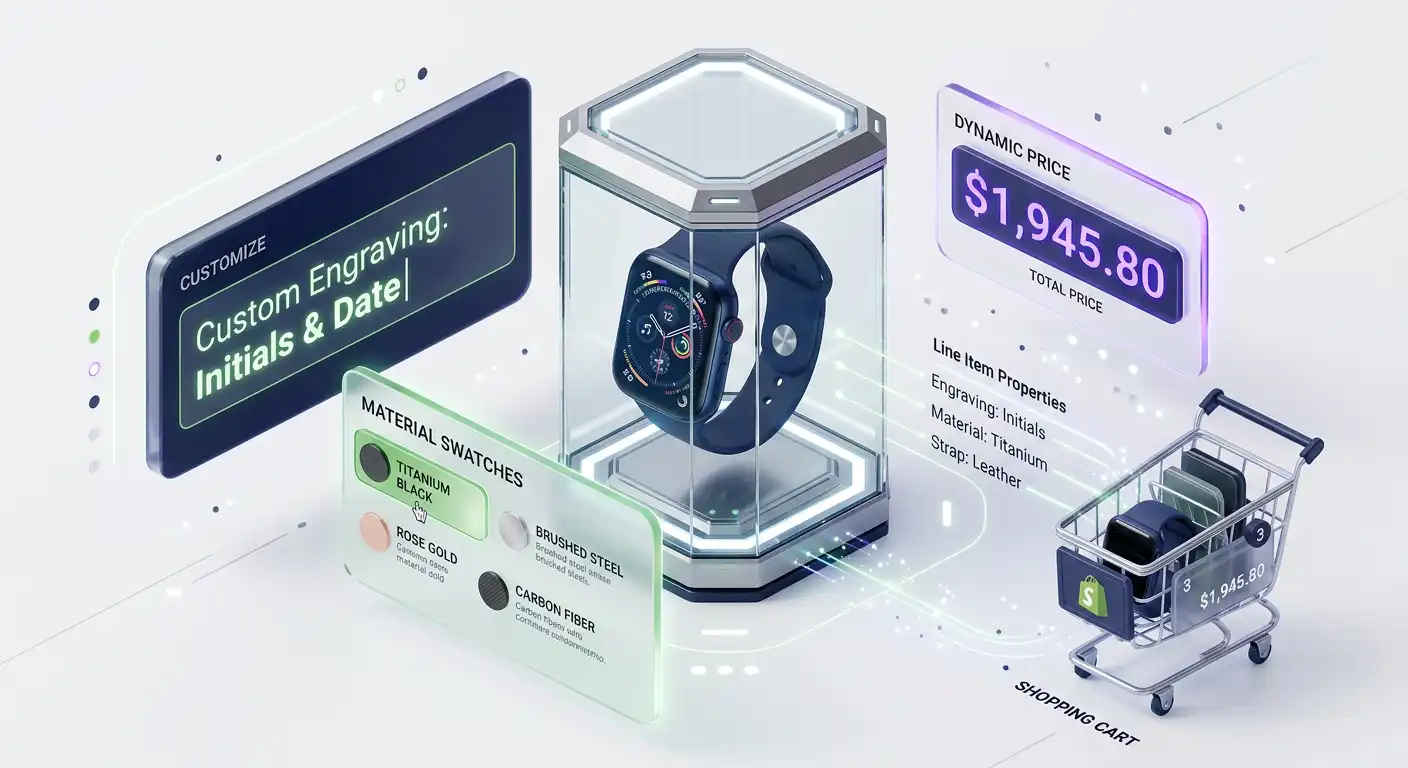
Shopify's variant system works well for simple options: a t-shirt in three colors and four sizes is 12 variants, easily managed. But when your customers need to configure something more complex — a custom engraved ring, a built-to-order PC, a personalized gift box, a product bundle where they choose components — you hit the walls of what variants can do.
Shopify enforces a 3-option, 100-variant limit per product. It has no native support for customer-uploaded files, free-form custom text, conditional options (option B only appears if option A is selected), or live visual previews that update as the customer configures.
A custom product configurator built by a developer bypasses all of these limitations. Here's how it works technically.
What a Custom Configurator Handles That Variants Don't
Free-form text input — Engraving, monogramming, personalized messages, custom names. Shopify variants can't represent infinite text strings. A configurator captures this as a line item property.
File uploads — Custom photo prints, logo embroidery, proof documents. Requires handling file storage and attaching file references to the order.
Conditional options — "If you select leather material, show color options. If you select canvas, hide the color options and show pattern options instead." This logic can't be encoded in Shopify's flat variant structure.
Live price calculation — The base price plus add-ons as options are selected, calculated in real time before the customer adds to cart.
Visual preview — A live mockup that updates as the customer makes selections — showing their text in the engraving position, their photo in the frame, their color choice on the product.
Kit builders — "Choose any 3 from these 8 products for $49." Not a variant problem — a quantity and selection logic problem.
The Technical Foundation: Line Item Properties
Shopify's cart API has a feature that most store owners don't know exists: line item properties. Every item in the cart can carry arbitrary key-value data alongside the product and variant.
When you submit a product form with hidden inputs named properties[key], Shopify attaches them to the cart line item:
<form action="/cart/add" method="post" id="product-configurator-form">
  <input type="hidden" name="id" value="{{ product.variants.first.id }}">
  <input type="hidden" name="quantity" value="1">

  <!-- These become line item properties -->
  <input type="hidden" name="properties[Engraving Text]" id="engraving-input">
  <input type="hidden" name="properties[Font]" id="font-input">
  <input type="hidden" name="properties[Proof Image URL]" id="proof-image-input">
</form>
These properties appear in the order confirmation email, in Shopify Admin when viewing the order, and can be accessed via the Admin API for fulfillment. Your team sees exactly what the customer specified.
Example 1: Personalized Engraving Configurator
For a jewelry store offering custom engraving, the configurator needs: text input, font selection, character limit, live preview showing the text on the product image, and price adjustment based on character count.
<div class="configurator" id="engraving-configurator">
  <!-- Live preview -->
  <div class="preview-container">
    <img
      src="{{ product.featured_image | image_url: width: 600 }}"
      alt="{{ product.title }}"
      id="product-preview-image"
    />
    <div class="engraving-overlay" id="engraving-preview" aria-live="polite">
      Your text here
    </div>
  </div>

  <!-- Configuration options -->
  <div class="config-options">
    <label for="engraving-text">
      Engraving Text
      <span class="char-count">
        <span id="char-current">0</span>/20 characters
      </span>
    </label>
    <input
      type="text"
      id="engraving-text"
      maxlength="20"
      placeholder="Enter your text"
      aria-describedby="engraving-hint"
    />
    <p id="engraving-hint" class="hint">
      +$5 for 1–10 characters, +$10 for 11–20 characters
    </p>

    <label for="font-select">Font Style</label>
    <select id="font-select">
      <option value="serif" data-price="0">Classic Serif</option>
      <option value="script" data-price="3">Elegant Script (+$3)</option>
      <option value="block" data-price="0">Block Print</option>
    </select>
  </div>

  <!-- Dynamic price display -->
  <div class="price-display">
    <span class="base-price">{{ product.price | money }}</span>
    <span class="add-on-price" id="addon-price" style="display:none"></span>
    <span class="total-price" id="total-price"
      >{{ product.price | money }}</span
    >
  </div>

  <button type="button" id="add-to-cart-btn" class="btn btn-primary">
    Add to Cart
  </button>
</div>
class EngravingConfigurator {
constructor() {
this.basePrice = {{ product.price }}; // in cents
this.engravingText = '';
this.fontChoice = 'serif';
this.fontUpcharge = 0;
this.elements = {
textInput: document.getElementById('engraving-text'),
fontSelect: document.getElementById('font-select'),
preview: document.getElementById('engraving-preview'),
charCurrent: document.getElementById('char-current'),
addonPrice: document.getElementById('addon-price'),
totalPrice: document.getElementById('total-price'),
addToCartBtn: document.getElementById('add-to-cart-btn'),
};
this.init();
}
init() {
this.elements.textInput.addEventListener('input', () => this.onTextChange());
this.elements.fontSelect.addEventListener('change', () => this.onFontChange());
this.elements.addToCartBtn.addEventListener('click', () => this.addToCart());
}
onTextChange() {
this.engravingText = this.elements.textInput.value;
const len = this.engravingText.length;
// Update character count
this.elements.charCurrent.textContent = len;
// Update live preview
this.elements.preview.textContent = this.engravingText || 'Your text here';
this.elements.preview.style.fontFamily = this.getFontFamily();
// Update pricing
this.updatePrice();
}
onFontChange() {
const selectedOption = this.elements.fontSelect.selectedOptions[0];
this.fontChoice = this.elements.fontSelect.value;
this.fontUpcharge = parseInt(selectedOption.dataset.price || '0', 10) * 100;
this.elements.preview.style.fontFamily = this.getFontFamily();
this.updatePrice();
}
getEngravingUpcharge() {
const len = this.engravingText.length;
if (len === 0) return 0;
if (len <= 10) return 500; // $5.00
return 1000; // $10.00
}
getFontFamily() {
const families = {
serif: 'Georgia, serif',
script: 'Dancing Script, cursive',
block: 'Courier New, monospace',
};
return families[this.fontChoice] || 'serif';
}
updatePrice() {
const engravingUpcharge = this.getEngravingUpcharge();
const totalUpcharge = engravingUpcharge + this.fontUpcharge;
const totalPrice = this.basePrice + totalUpcharge;
if (totalUpcharge > 0) {
this.elements.addonPrice.textContent = `+ ${this.formatMoney(totalUpcharge)}`;
this.elements.addonPrice.style.display = 'inline';
} else {
this.elements.addonPrice.style.display = 'none';
}
this.elements.totalPrice.textContent = this.formatMoney(totalPrice);
}
formatMoney(cents) {
return '$' + (cents / 100).toFixed(2);
}
async addToCart() {
if (!this.engravingText.trim()) {
this.elements.textInput.focus();
this.elements.textInput.setCustomValidity('Please enter engraving text');
this.elements.textInput.reportValidity();
return;
}
const engravingUpcharge = this.getEngravingUpcharge();
const totalUpcharge = engravingUpcharge + this.fontUpcharge;
// Find or use a variant that represents the correct price tier
// Option: use a single variant and track custom price via properties
// Better: use separate variants for each price tier (base, +$5, +$10)
const variantId = this.getVariantForPrice(engravingUpcharge);
const cartData = {
items: [{
id: variantId,
quantity: 1,
properties: {
'Engraving Text': this.engravingText,
'Font Style': this.fontChoice,
...(this.fontUpcharge > 0 && { 'Font Upcharge': `+${this.formatMoney(this.fontUpcharge)}` }),
}
}]
};
this.elements.addToCartBtn.textContent = 'Adding...';
this.elements.addToCartBtn.disabled = true;
try {
const response = await fetch('/cart/add.js', {
method: 'POST',
headers: { 'Content-Type': 'application/json' },
body: JSON.stringify(cartData),
});
if (!response.ok) throw new Error('Cart add failed');
// Trigger cart drawer open or redirect
document.dispatchEvent(new CustomEvent('cart:updated'));
window.location.href = '/cart';
} catch (error) {
console.error('Add to cart failed:', error);
this.elements.addToCartBtn.textContent = 'Add to Cart';
this.elements.addToCartBtn.disabled = false;
}
}
getVariantForPrice(engravingUpcharge) {
// Map upcharge to variant ID
// These variant IDs correspond to product variants set up for each price tier
const variantMap = {
0: {{ product.variants[0].id }}, // No engraving
500: {{ product.variants[1].id }}, // +$5 engraving
1000: {{ product.variants[2].id }}, // +$10 engraving
};
return variantMap[engravingUpcharge] || variantMap[0];
}
}
document.addEventListener('DOMContentLoaded', () => new EngravingConfigurator());The key insight: price tiers are represented as Shopify variants (so Shopify handles the correct price), while custom data (the actual engraving text, font choice) travels as line item properties.
Example 2: Conditional Options With Dependent Logic
A custom furniture store where material choice unlocks different finish options:
const configuratorLogic = {
  options: {
    material: {
      wood: {
        label: "Solid Wood",
        unlocks: ["wood_finish"],
        disables: ["metal_finish"],
        priceAdjust: 0,
      },
      metal: {
        label: "Powder-Coated Steel",
        unlocks: ["metal_finish"],
        disables: ["wood_finish"],
        priceAdjust: -5000, // -$50
      },
      mixed: {
        label: "Wood + Steel",
        unlocks: ["wood_finish", "metal_finish"],
        priceAdjust: 3000, // +$30
      },
    },
    wood_finish: {
      natural: { label: "Natural Oak", priceAdjust: 0 },
      walnut: { label: "Dark Walnut", priceAdjust: 2000 },
      white: { label: "White Painted", priceAdjust: 0 },
    },
    metal_finish: {
      black: { label: "Matte Black", priceAdjust: 0 },
      silver: { label: "Brushed Silver", priceAdjust: 1500 },
      brass: { label: "Antique Brass", priceAdjust: 4000 },
    },
  },

  state: {
    material: null,
    wood_finish: null,
    metal_finish: null,
  },

  onSelect(optionKey, value) {
    this.state[optionKey] = value;

    if (optionKey === "material") {
      const choice = this.options.material[value];

      // Show/hide dependent option groups
      choice.unlocks.forEach((key) => {
        document
          .querySelector(`[data-option-group="${key}"]`)
          .removeAttribute("hidden");
      });
      choice.disables.forEach((key) => {
        const group = document.querySelector(`[data-option-group="${key}"]`);
        group.setAttribute("hidden", "");
        this.state[key] = null; // Reset hidden options
      });
    }

    this.updateTotal();
    this.updateSummary();
  },

  calculateTotal() {
    const base = window.productBasePrice;
    let total = base;

    for (const [key, value] of Object.entries(this.state)) {
      if (!value) continue;
      const optionGroup = this.options[key];
      if (optionGroup && optionGroup[value]) {
        total += optionGroup[value].priceAdjust || 0;
      }
    }
    return total;
  },
};
This pattern — a state object + logic that shows/hides option groups based on current selection — scales to very complex configuration trees. A multi-step wizard UI wraps this same logic for products with many options.
Example 3: Kit Builder ("Choose Any 3")
class KitBuilder {
  constructor(config) {
    this.required = config.required; // e.g., 3
    this.discount = config.discount; // e.g., 0.15 (15%)
    this.selected = new Set();
    this.individualTotal = 0;
  }

  toggle(variantId, price) {
    if (this.selected.has(variantId)) {
      this.selected.delete(variantId);
      this.individualTotal -= price;
    } else if (this.selected.size < this.required) {
      this.selected.add(variantId);
      this.individualTotal += price;
    }
    this.update();
  }

  update() {
    const count = this.selected.size;
    const isComplete = count === this.required;
    const discountedTotal = isComplete
      ? Math.round(this.individualTotal * (1 - this.discount))
      : this.individualTotal;

    document.getElementById("kit-count").textContent =
      `${count}/${this.required} selected`;
    document.getElementById("kit-savings").textContent = isComplete
      ? `You save ${this.formatMoney(this.individualTotal - discountedTotal)}`
      : "";
    document.getElementById("kit-total").textContent =
      this.formatMoney(discountedTotal);
    document.getElementById("add-kit-btn").disabled = !isComplete;
  }

  async addToCart() {
    // Add all selected items in a single cart API call
    const items = Array.from(this.selected).map((variantId) => ({
      id: variantId,
      quantity: 1,
      properties: { _kit_group: `kit-${Date.now()}` }, // Group items visually
    }));

    await fetch("/cart/add.js", {
      method: "POST",
      headers: { "Content-Type": "application/json" },
      body: JSON.stringify({ items }),
    });
  }
}
The discount is applied via a Shopify Discount Code (generated automatically for kit purchases) or via Checkout Functions if you're on Shopify Plus.
When to Build vs. Use an App
Custom configurators make sense when:
- Your product customization is a core part of your brand proposition
- App solutions don't match your UX or visual requirements
- You need conditional logic or complex pricing that apps can't handle
- You want zero monthly subscription overhead
App solutions (like Infinite Options, Bold Product Options) make sense when:
- You need simple additional text fields added quickly
- Your customization needs are standard and likely to stay standard
- You don't have developer resources for ongoing maintenance
For stores where product customization is central — personalized gifts, custom apparel, configure-to-order products — a developer-built configurator is a competitive advantage that no app can fully replicate, because it can match exactly how your product works and exactly how your customers think about configuring it.
If you have a product customization workflow that's currently handled via manual customer notes, phone calls, or an app that almost-but-not-quite works — that's a strong signal that a custom configurator would pay for itself in reduced customer service time and increased conversion.