Open your Shopify analytics right now and look at your traffic split between desktop and mobile.
For most Shopify stores, the number is somewhere between 60 and 75 percent mobile.
Now look at your conversion rate split. In almost every store, the mobile conversion rate is significantly lower than desktop — often half or less.
This gap is where an enormous amount of revenue disappears every month. You have customers coming to your store on their phones, they're interested, but the mobile experience has enough friction that they don't complete the purchase.
Here's how to find every mobile problem in your store and fix it.
Step 1 — Test Your Store on a Real Phone
This sounds obvious. Most store owners have never done it properly.
Open your store on an actual mobile device — not Chrome's mobile simulator, which is not an accurate representation of real mobile experience. Use your own phone, and ideally also test on a different phone with a smaller screen.
Navigate through your store as a first-time customer would. Browse your homepage. Open a collection. View a product. Add it to your cart. Start checkout.
At each step, ask:
- Does this load quickly enough that I wouldn't get impatient?
- Can I read all the text without zooming in?
- Are the buttons large enough to tap accurately?
- Does anything feel awkward or hard to use?
- Is there any element that doesn't display correctly?
Write down every friction point you notice. These are your priorities.
Step 2 — Fix Your Mobile Page Speed
Mobile performance is covered in detail in our store speed guide, but mobile deserves specific attention because mobile connections are slower than WiFi and mobile processors are less powerful.
A page that loads in 2 seconds on a fast WiFi connection might take 5 or 6 seconds on a 4G mobile connection. At 6 seconds, most mobile users have already left.
Check your mobile PageSpeed score specifically. Go to pagespeed.web.dev and run your store URL. Switch to the Mobile tab — not Desktop. The mobile score is what Google uses for ranking and it's almost always significantly lower.
The mobile-specific fixes that matter most:
Your hero image is often the biggest mobile performance problem. A 2400 x 1400px hero image designed for desktop is loading on a 375px wide mobile screen — downloading 10x more data than necessary. Your theme should be serving a mobile-specific, smaller image. If it's not, fix this first.
Reduce the number of scripts loading on mobile. Some apps have mobile-specific loading options — check each app's settings for options to disable or delay loading on mobile.
Lazy load all images below the fold. Only load what the customer can actually see.
Step 3 — Fix Your Mobile Typography
that's readable on desktop often becomes a strain to read on mobile.
Minimum font size for mobile: 16px.
Anything smaller requires customers to pinch-to-zoom to read comfortably. Customers who have to work to read your product descriptions or policies will leave instead.
Check specifically:
- Product descriptions
- Shipping and return policy information
- Navigation menu items
- Button text
- Review text
- Size guide information
If any of these are below 16px on mobile, increase them.
Line length on mobile matters too. On desktop, long paragraphs are readable. On mobile, very long paragraphs become walls of text that are visually overwhelming. Break long paragraphs into shorter ones. Use bullet points for lists of features or benefits. Give the text room to breathe.
Step 4 — Fix Your Navigation for Thumbs
Desktop navigation is designed for a mouse cursor that can hover and click precisely. Mobile navigation needs to work for thumbs — which are imprecise, can't hover, and are harder to use in certain areas of the screen.
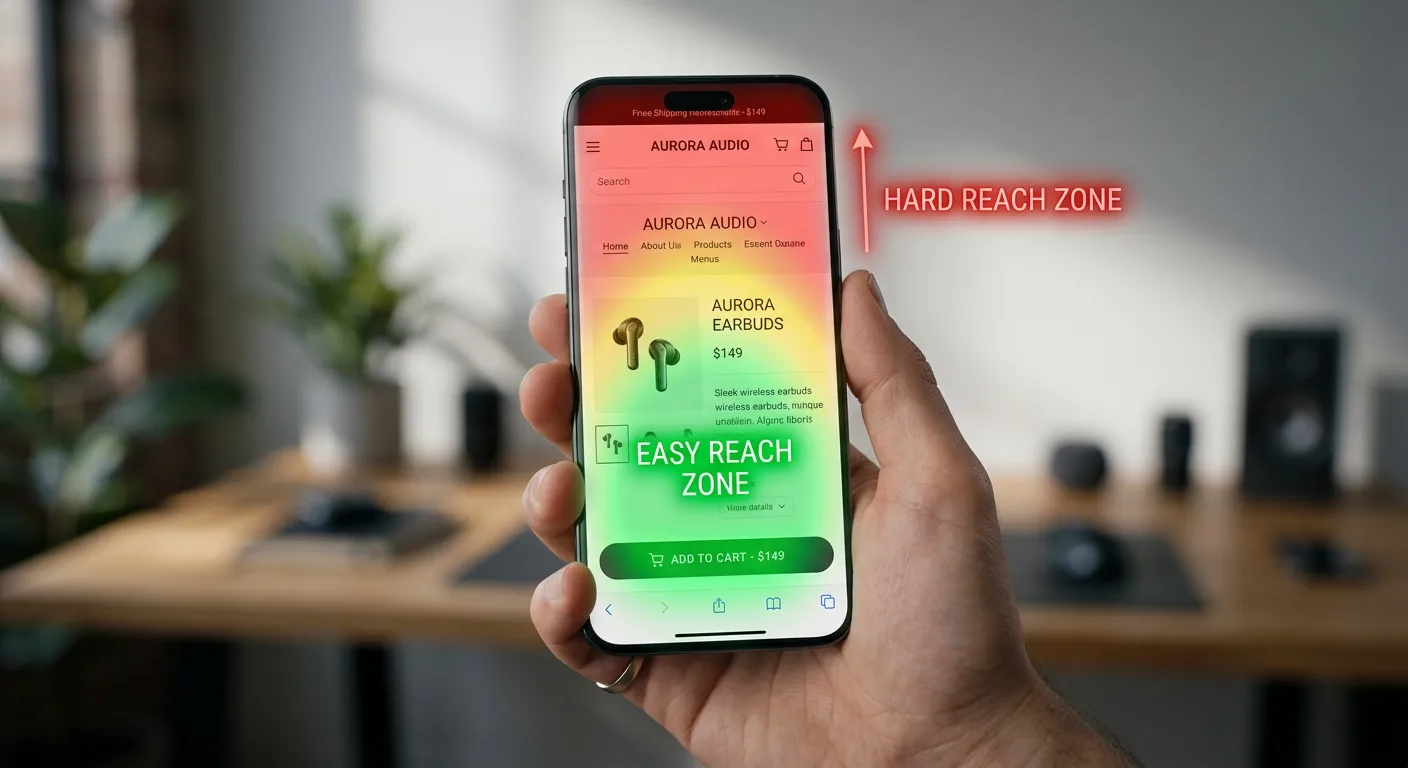
The thumb zone: The natural reach area for a right-handed thumb on a phone is the bottom-center of the screen. The top corners and top-center of the screen are hardest to reach without shifting the phone.
Most Shopify stores put their navigation in the top-left or top-right corner — the hardest places to reach on mobile. This is fine for a hamburger menu icon, but critical actions and frequently used navigation should consider thumb reachability.
What to fix:
Make your hamburger menu icon large enough to tap easily — at least 44 x 44 pixels. Small icons that are hard to tap frustrate mobile users immediately.
Make sure your navigation menu items are large enough to tap without accidentally hitting an adjacent item. A minimum height of 44 pixels per navigation item is the standard.
Include a persistent cart icon that's easy to reach. Customers who add items to their cart and then can't easily find the cart icon will get frustrated.
Consider adding a bottom navigation bar for your most-visited sections. Some Shopify themes support this natively — a bottom bar with Home, Collection, Search, and Cart icons puts the most-used actions in the most thumb-friendly location.
Step 5 — Fix Your Mobile Product Page
The product page is where the purchase decision is made, and mobile product pages have several common problems that desktop versions don't.
Product images on mobile:
Your product image gallery needs to be swipeable on mobile. Customers expect to swipe through product photos the same way they swipe through Instagram stories. If your image gallery requires tapping arrows or doesn't respond to swipe gestures, it feels broken.
Images should load quickly (see Step 2) and should zoom properly when tapped. Customers who want to inspect product detail or texture will pinch-to-zoom. Make sure your images are high enough resolution to hold up at zoom level.
Add to Cart button position:
On mobile, the Add to Cart button must be visible without scrolling — or your theme should implement a sticky Add to Cart that follows the customer as they scroll down the product page.
On a phone screen, a customer who has to scroll back up to find the Add to Cart button after reading the description often won't bother. The purchase action should always be one tap away.
Product description length:
Long product descriptions that work on desktop can feel overwhelming on mobile. Consider using an expandable "Read more" section for longer descriptions — showing the first two or three key sentences and letting customers tap to expand if they want the full detail.
Step 6 — Fix Mobile Checkout
Checkout on mobile has more friction than desktop checkout because typing on a phone is slower and more error-prone than typing on a keyboard.
Every extra field, every form that's hard to fill on a phone keyboard, and every step that requires precise tapping is friction that costs you completed orders.
Enable payment methods that eliminate typing:
Apple Pay and Google Pay let mobile customers pay with a single biometric confirmation — face ID, touch ID, or fingerprint. No card number to type, no billing address to fill in. For mobile customers, this is transformative for checkout completion rates.
Enable both in your Shopify Payments settings if you haven't already. For many stores, enabling these two payment methods is the single highest-impact mobile checkout improvement available.
Shop Pay:
Shop Pay remembers customer information across Shopify stores. A returning Shop Pay user can complete checkout on mobile in two taps. Enable it.
Input fields on mobile:
Make sure your checkout form fields trigger the right keyboard type on mobile. An email field should trigger the email keyboard (with @ easily accessible). A phone number field should trigger the number pad. A credit card number field should trigger the number pad. Shopify's checkout handles most of this automatically, but custom checkout fields sometimes don't.
Address autofill:
Shopify's checkout supports address autofill on mobile, which dramatically speeds up the shipping address step. Make sure you're not using any custom checkout modifications that disable this.
Step 7 — Fix Mobile Search
Customers who use your store's search bar on mobile are high-intent visitors — they know what they want and they're trying to find it quickly. If your search experience on mobile is poor, you're losing your most motivated customers.
Check your mobile search experience:
Is the search bar easy to find and tap on mobile? When the search bar is tapped, does the keyboard appear immediately? Are search results easy to read and tap on a mobile screen? Does your search handle common misspellings and variations?
Most Shopify themes use Shopify's predictive search, which works reasonably well on mobile. If your search results are showing in a way that's hard to navigate on mobile, check your theme's search settings.
The Mobile Fix Priority Order
Immediate impact: □ Test your store on a real phone and note all friction points □ Check your mobile PageSpeed score □ Enable Apple Pay and Google Pay □ Verify Add to Cart button is visible without scrolling
High impact: □ Fix hero image mobile sizing □ Verify all text is at least 16px on mobile □ Make product image gallery swipeable □ Ensure navigation items are large enough to tap
Medium impact: □ Add sticky Add to Cart for mobile □ Check and fix mobile search experience □ Improve mobile product description formatting □ Test full checkout flow on mobile
Mobile is where the majority of your traffic is and where the majority of your conversion rate improvement opportunity lives. A 1 percent improvement in mobile conversion rate on a store with 10,000 monthly mobile visitors means 100 additional sales per month — without spending a single extra dollar on traffic.
If you've gone through this list and you're still seeing a large gap between your mobile and desktop conversion rates, the problem is likely either technical (requiring code-level fixes) or a deeper UX issue specific to your theme.
I'm happy to look at your mobile experience specifically and tell you what's causing the gap.