You check your analytics.
Your product page got 400 visits last week. You made 6 sales.
That's a 1.5% conversion rate. The industry average for e-commerce is around 2 to 3 percent. For a well-optimized product page, it should be 4 to 6 percent or higher.
Which means somewhere between 370 and 390 people looked at your product, considered it, and decided not to buy.
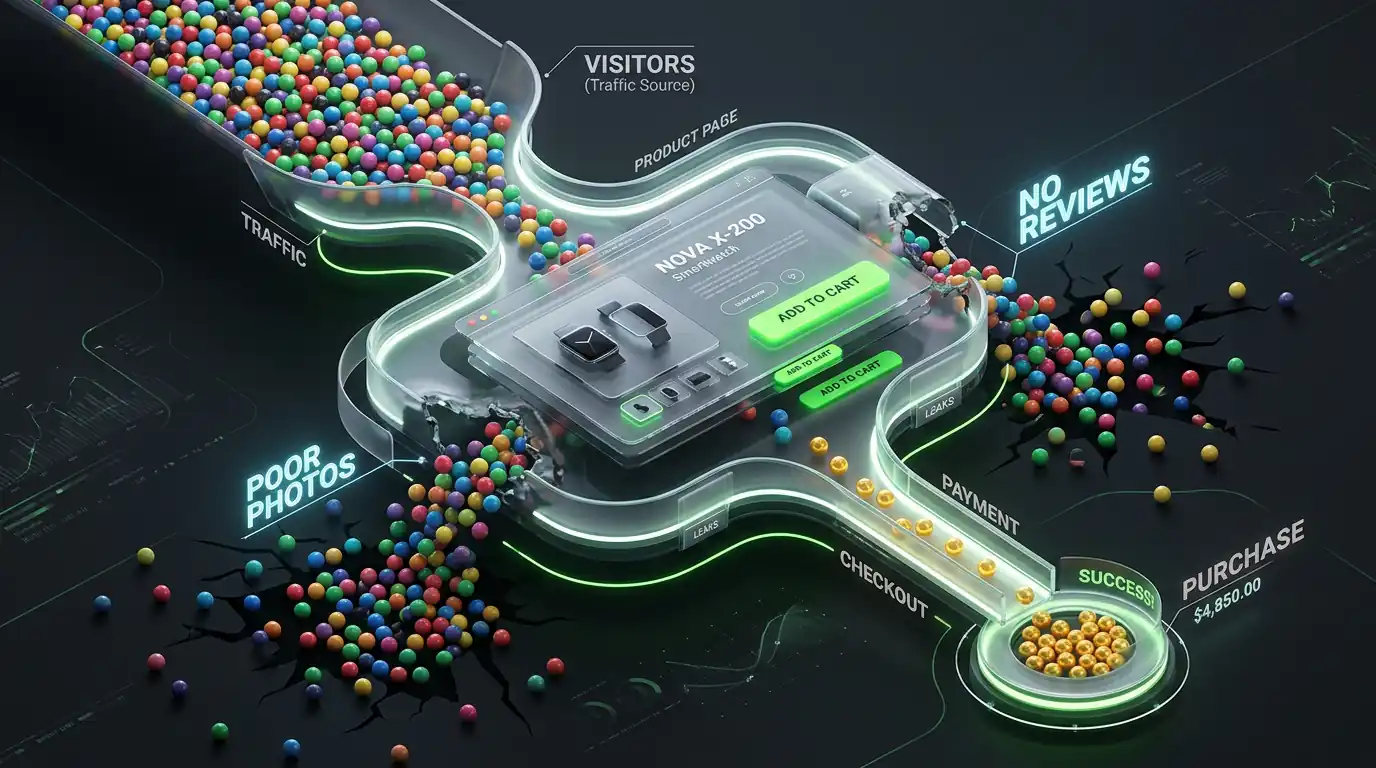
The instinct most store owners have at this point is to get more traffic — run more ads, post more on social media, do more SEO. But if your product page has a conversion problem, more traffic just means more people leaving without buying. You're filling a leaky bucket.
Fix the page first. Then scale the traffic.
Here's what's actually causing people to leave your product page without buying, and what to do about each one.
Problem 1 — Your Product Photos Are Not Good Enough
This is the most common reason people don't buy online, and it's the one most store owners underestimate.
When someone buys in a physical store, they can pick the product up. They can feel the texture, check the size, look at it from every angle, and try it if applicable. Online, they can't do any of that. Your photos are doing the job that physical experience does in a store.
If your photos don't give the customer enough visual information to feel confident about the purchase, they won't buy. They can't. They don't know what they're actually getting.
Signs your product photos are the problem
Your photos were taken with a phone in your living room with no attention to lighting. You have only one or two photos per product. Your photos are small or low resolution. You don't show the product being used or worn — only the product alone on a white background. Customers can't tell the actual size of the product from your photos.
What your product photos need to do
Show the product from every relevant angle. Front, back, sides, detail shots, close-ups of texture or hardware or stitching — whatever is relevant to your specific product. Customers should feel like they've seen every inch of it.
Show the product in use. Lifestyle photos that show the product being used by a real person in a real context help customers imagine owning it. A clothing store that only shows flat lays misses the most important question customers have: "What will this look like on me?"
Show scale. If a customer can't tell how big your product is, they're guessing. A coffee mug next to a hand shows size instantly. A bag worn on a person's shoulder shows dimensions far better than measurements in a spec table.
Use consistent, professional lighting. You don't need a professional photographer. A white background, a window with natural light, and a phone with a decent camera can produce professional-looking product photos. What you cannot afford is dark, blurry, or inconsistent photos.
Show variants accurately. If you sell a product in five colors, show the actual product in all five colors. Don't show one color and expect customers to imagine the rest.
Problem 2 — Your Product Description Doesn't Answer the Right Questions
Most product descriptions read like they were written for a catalog, not for a customer who's standing at the edge of a decision.
They list features. They describe materials. They use adjectives like "premium" and "high-quality" and "luxurious" that mean nothing because every store says the same things.
What they don't do is answer the specific questions a real customer has before they buy.
The questions customers are actually asking
Before clicking "Add to Cart," every customer is consciously or unconsciously working through a mental checklist:
- Is this the right product for my specific situation?
- Will it actually do what I need it to do?
- Is it the right size, fit, or specification for me?
- What happens if I don't like it?
- Why should I buy this instead of something else?
- Is this price worth it for what I'm getting?
Your product description needs to answer all of these questions. If any of them are left unanswered, that's a reason to hesitate — and hesitation leads to leaving the page.
How to rewrite your product descriptions
Start with the customer's problem or desire, not with the product's features.
Instead of: "Our yoga mat is made from premium TPE material with a 6mm thickness and non-slip surface."
Write: "If you've ever slid across your mat during downward dog or ended a session with sore knees from too little cushioning — this mat fixes both problems. The non-slip texture stays grounded even in hot yoga, and the 6mm thickness protects your joints without making balance poses feel unstable."
The second version speaks directly to the customer's experience. It addresses specific problems. It helps them see themselves using the product.
After the opening, include:
- Specific features with explanations of why they matter
- Who this product is ideal for
- Who this product is NOT ideal for (this builds trust)
- Size, fit, or usage guidance
- Care instructions if relevant
Problem 3 — Your Add to Cart Button Isn't Prominent Enough
This sounds almost too simple to be a real problem. But it is.
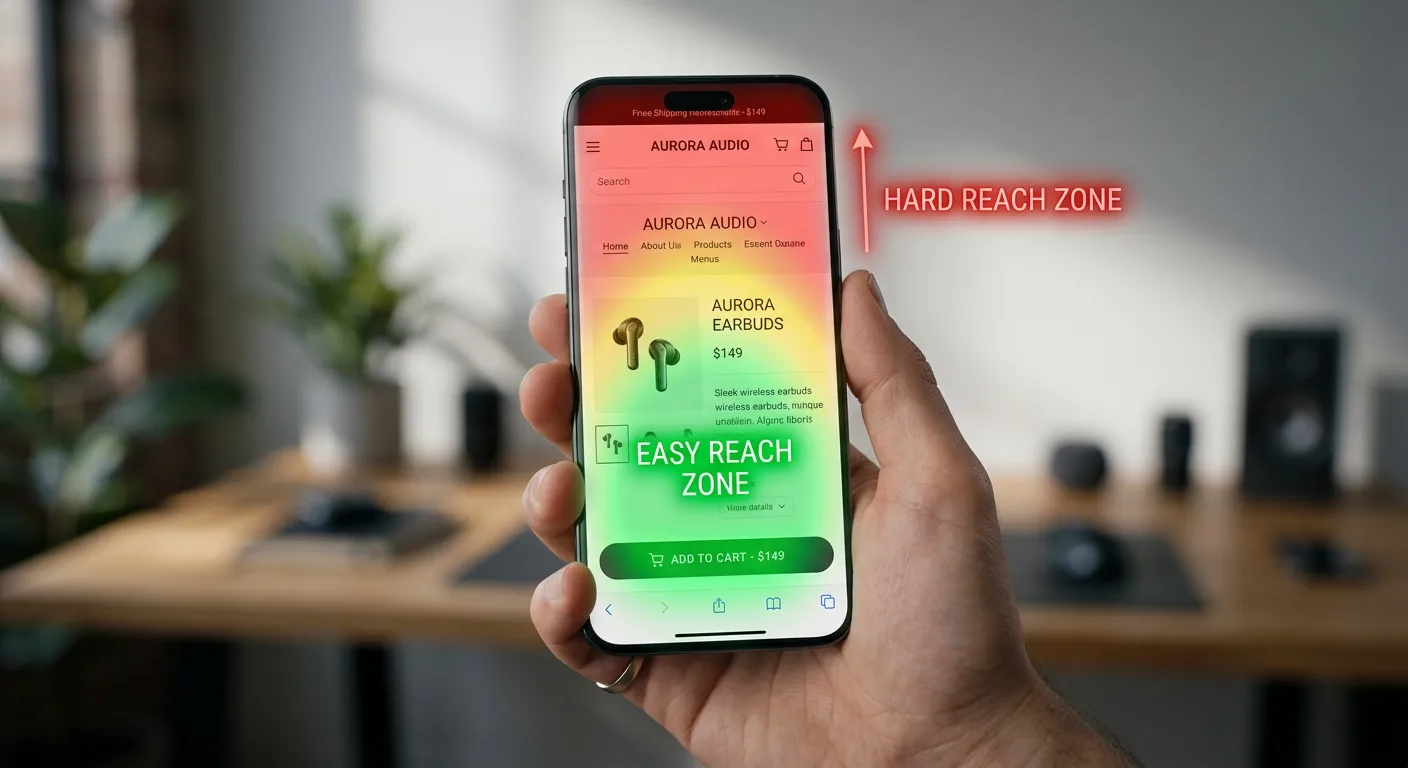
The Add to Cart button is the single most important element on your product page. It's the action you want every visitor to take. If it's not immediately obvious, if it's below the fold on mobile, or if it blends into the rest of your page design — customers who are ready to buy can't find it easily.
Friction at the conversion point costs you sales.
Check these things on your product page
Is the Add to Cart button visible without scrolling on mobile? Pull up your product page on your phone. Can you see the Add to Cart button without scrolling? On mobile, most customers will not scroll to find a button. If the button is below the fold, a significant percentage of mobile visitors will leave without buying even if they wanted to.
Does the button stand out visually? The Add to Cart button should be the most visually prominent element in the purchase area. It should use a color that contrasts with the rest of your page — not a muted gray or a color that blends into your background.
Is the button text clear? "Add to Cart" is clear. "Buy Now" is clear. "Get Yours" is less clear. "Submit" is terrible. The button text should tell the customer exactly what happens when they click it.
Is there a sticky Add to Cart on mobile? Many high-converting Shopify themes include a sticky Add to Cart bar that follows the customer as they scroll down the product page. This keeps the purchase action one tap away at all times. If your theme doesn't have this, there are apps that add it.
Problem 4 — There's No Social Proof on the Page
When a customer lands on your product page, they're making a judgment call with incomplete information. They don't know you. They've never used your product. They're being asked to hand over money based on photos and text.
Social proof — reviews, ratings, customer photos, testimonials — fills that trust gap. It tells the customer: other people bought this, used it, and were happy with it. That's a powerful signal.
A product page with no reviews is asking customers to take a leap of faith. Many won't.
What social proof to add and where
Star rating and review count near the top of the page. The rating summary should appear near the product title, above the Add to Cart button — not buried at the bottom of the page where customers have to scroll to find it.
Written reviews with specific details. Generic five-star reviews that say "Great product!" help a little. Reviews that say "I've been using this for three months and it's held up perfectly — I was skeptical about the price but it's absolutely worth it" help a lot. The more specific the review, the more trust it builds.
Customer photos. Reviews with photos of real customers using the product in real contexts are extremely powerful. If your review app supports photo reviews, enable them and actively encourage customers to add photos when leaving reviews.
Number of orders or customers. If you've sold to a significant number of customers, showing that number builds confidence. "4,200+ happy customers" is a trust signal.
How to get more reviews
The most reliable way to get reviews is simply to ask. Send a post-purchase email 7 to 14 days after delivery asking customers to share their experience. Most people who are happy with a purchase will leave a review if asked — they just don't think to do it unprompted.
Problem 5 — Customers Don't Feel Safe Buying From You
Trust is the invisible barrier between a customer who wants your product and a customer who buys it.
For established brands, trust is assumed. For smaller or newer stores, it has to be earned on every page. And the product page is where the purchase decision is made, so it's where trust signals matter most.
The trust signals that work
A clear, visible return policy. "30-day free returns" near the Add to Cart button removes one of the biggest objections customers have: "What if it's not what I expected?" When customers know they can return it easily, the risk of buying feels much lower.
Security badges near the payment information. "Secure Checkout," SSL badges, and payment provider logos (Visa, Mastercard, PayPal) signal that the transaction is safe. Your checkout is genuinely secure — but customers can't see that unless you show them.
Contact information that's easy to find. A customer who is uncertain about a purchase wants to know that if something goes wrong, they can reach a real person. A visible email address, chat option, or phone number reduces that uncertainty.
A professional, consistent design. Trust is partly rational and partly emotional. A store that looks polished and professional triggers positive emotional responses. A store with mismatched fonts, blurry images, broken elements, or an inconsistent color palette triggers doubt — often unconsciously.
Problem 6 — Your Page Is Too Slow on Mobile
We covered store-wide performance in another post, but it's worth addressing specifically for product pages because the impact on conversion is direct and measurable.
If your product page takes more than 3 seconds to load on a mobile connection, a significant percentage of visitors will leave before it finishes loading. They never even see your product.
And mobile is where the majority of your traffic is coming from. For most Shopify stores, 60 to 70 percent of visitors are on mobile devices.
Quick checks for product page speed
Go to your product page on your phone on a mobile connection — not WiFi. Time how long it takes to load and become interactive. If it feels slow to you, it is slow.
Run your product page URL through PageSpeed Insights and look specifically at your mobile score. A score below 50 on mobile means your product page performance is actively hurting your conversion rate.
The most common product page speed issues are unoptimized images, review app widgets loading slowly, and too many third-party scripts loading on the page.
The Conversion Rate Fix Priority Order
Priority 1 — Product Photos If your photos aren't good, nothing else matters. Fix this before anything else.
Priority 2 — Social Proof Add reviews near the top of the page. Get a review app running and start collecting reviews.
Priority 3 — Product Description Rewrite your top 5 product page descriptions to answer the real customer questions.
Priority 4 — Add to Cart Button Check mobile visibility and button prominence. Add sticky Add to Cart if your theme supports it.
Priority 5 — Trust Signals Add return policy, security badges near checkout.
Priority 6 — Page Speed Run PageSpeed Insights on your product pages. Fix the top issues listed under Opportunities.
Work through this list on your best-selling product page first. Measure the conversion rate before and after. Then apply the same fixes to your other important pages.
A Simple Way to Find Your Biggest Problem
Install Microsoft Clarity on your Shopify store. It's free and it records real visitor sessions — you can literally watch recordings of customers moving through your product page, where they scroll, where they click, and where they leave.
Watching 20 or 30 session recordings of customers who visited your product page and didn't buy will show you exactly where the friction is. You'll see customers scrolling past your Add to Cart button looking for it. You'll see them clicking on photos and getting frustrated by the zoom. You'll see them scrolling all the way down to check your return policy and then leaving without buying.
Real visitor behavior tells you more than any guide can.
If you've looked at your product pages and you're not sure what's actually causing the drop-off, or if you've made changes and the conversion rate still isn't moving, I'm happy to look at your specific pages and tell you what I see.